
Read and write values
Reading is safe; writing changes the ECU. The workflow below keeps a copy of the original value and verifies the new one.
Read
- Open the ECU in ECU Edit.
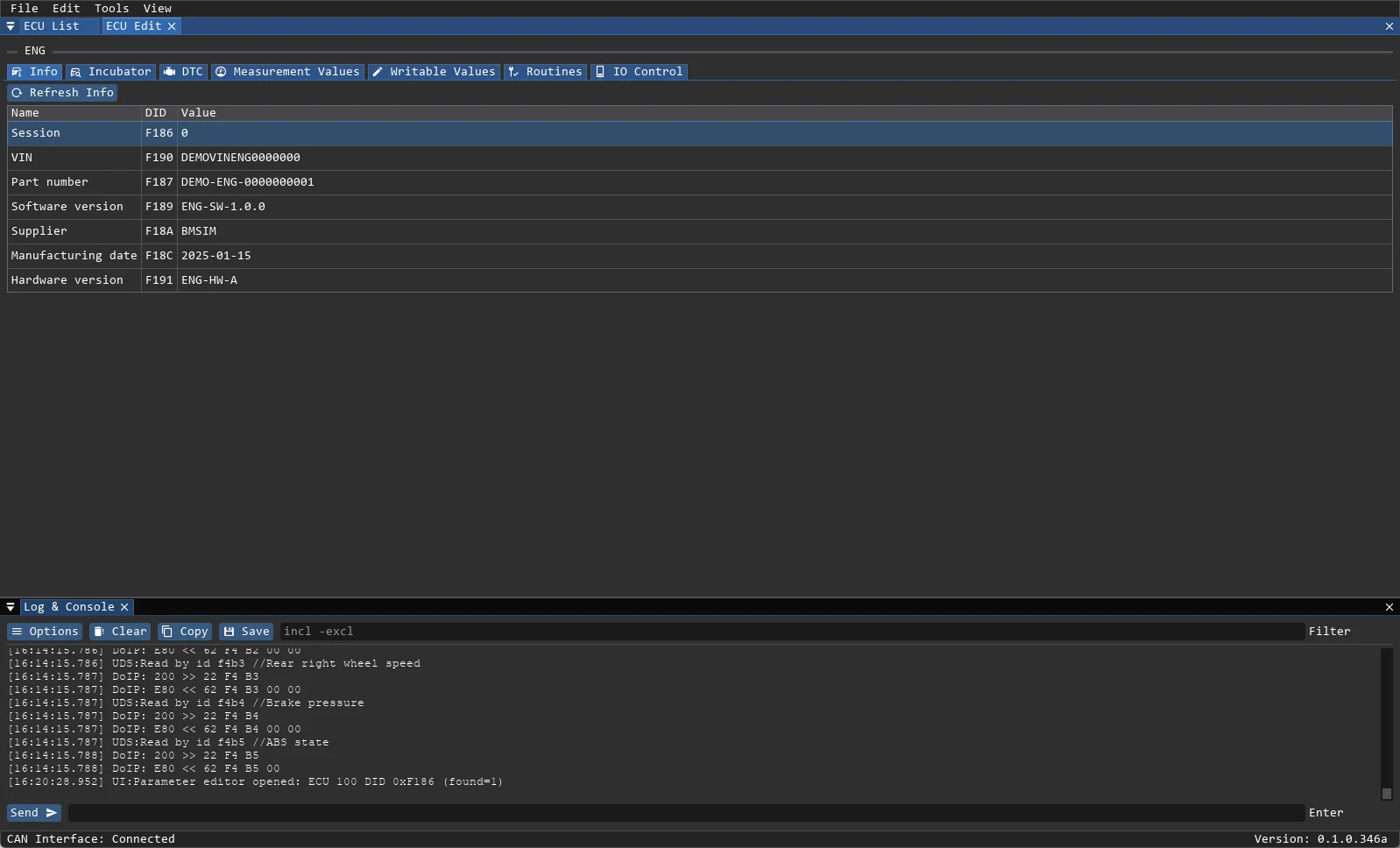
- Info tab → Refresh Info reads the
infogroup. - Parameters tab shows the rest of the project-defined DIDs.
- Right-click a row for Read (
Ctrl+R) and Copy to clipboard (Ctrl+C).Ctrl+Aselects all;Ctrl+click/Shift+clickselects multiple rows. - ECU List → Read All reads every parameter of every ECU in the project.
Write
- Open Writable Values. It lists parameters with
writeable: trueand a View. - Change the value. The editor shows the decoded value and the raw bytes that will be sent.
- Confirm the write in the dialog.
- Wait for the positive response and read the value back.
Writing uses UDS 0x2E. If the parameter has a separate write_auth level, that level is used for the write. A parameter in group ioctl with writeable: true is available both here (0x2E) and in IO Control (0x2F).
Security access
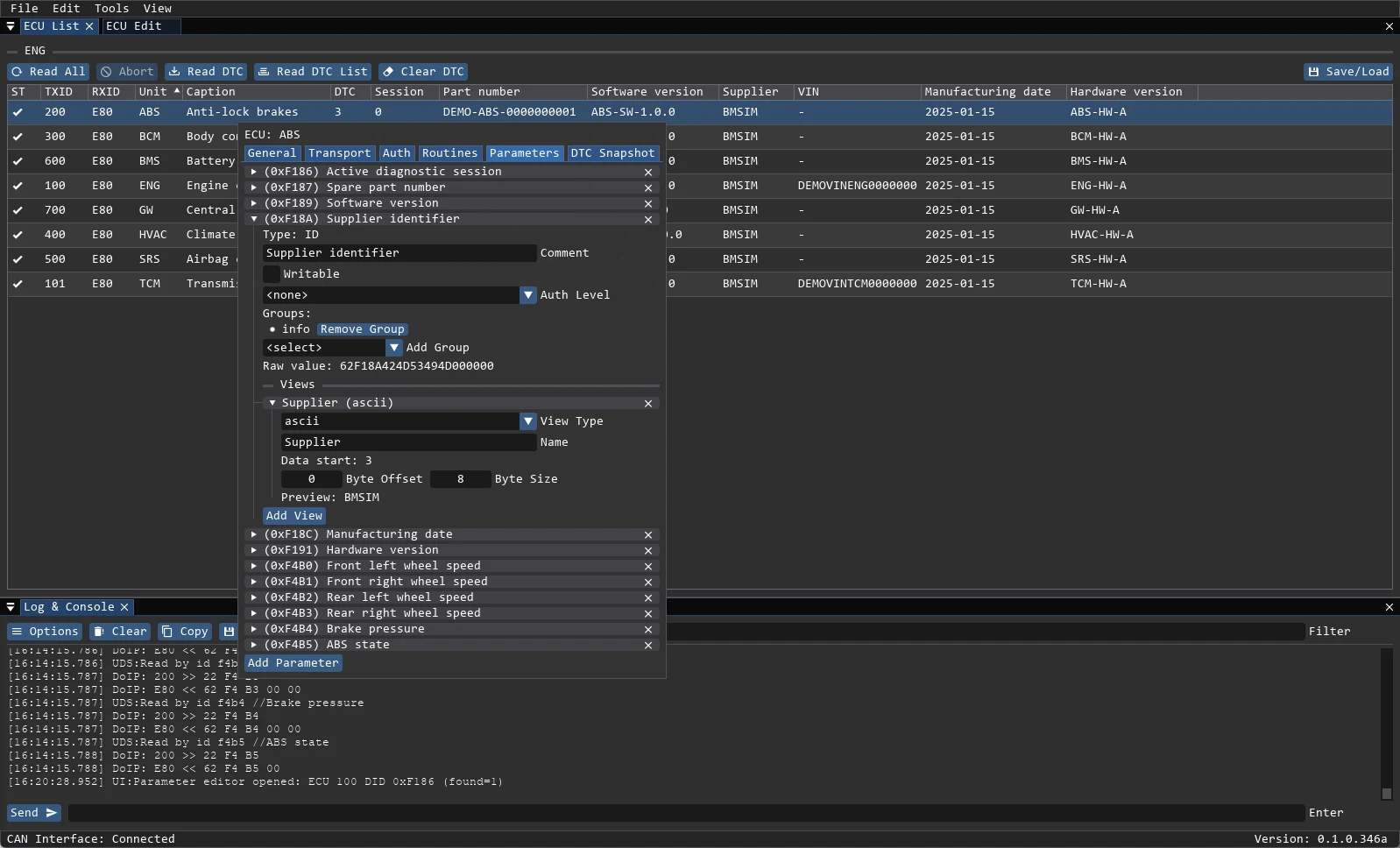
If the parameter is protected, the project must define an auth level and a Seed2Key DLL in data/auth/. The application performs the seed/key exchange automatically before the write. A rejected key appears in the log with the negative response code.
Manual seed/key work is available in UDS Tools.
Before a write
- Save a project dump (ECU List → Save/Load → Save Data) or export the table to CSV.
- Confirm the target ECU: the same DID can mean different things on two ECUs.
- Confirm the session and security level if you are writing outside the normal editor.
- Do not write while the vehicle is being flashed or while another tester holds the session.
A positive UDS response means the ECU accepted the request. It does not prove that the value is correct for this vehicle. Read it back and compare with the expected behaviour.