
Scripting quick start
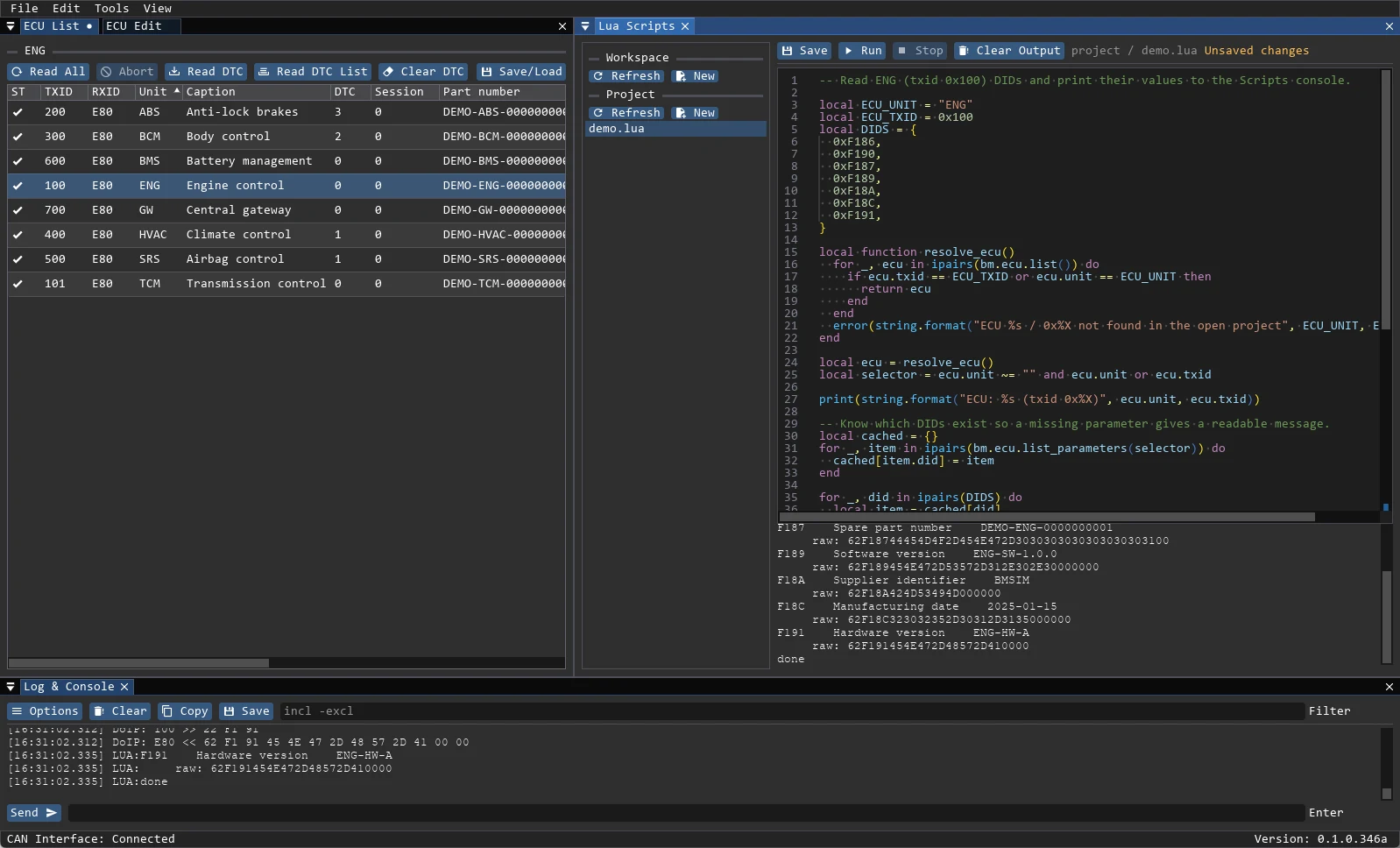
A Lua 5.4 script is a repeatable bench procedure. Start with one DID read, then grow it into a routine, a memory operation or a flash recipe.
Run a script
- Open Tools → Lua Scripts.
- Create a script in the workspace (
<workspace>/scripts/*.lua) or in the project (<project>/scripts/*.lua). Project scripts take priority. - Paste the example below.
- Press Run and read the output below the editor; errors also go to the application log.
-- Read one DID and print the decoded value
local ecu = 0x100 -- txid; a unit string such as "ENGINE" also works
local p = bm.ecu.read_did(ecu, 0xF190)
print(string.format("%04X", 0xF190), p.value or p.hex)
The unit selector is the ECU unit name or its transmit ID. Pass it explicitly; there is no hidden "selected ECU".
Useful patterns
-- Read all parameters and report each DID
local unit = "ENGINE"
for _, item in ipairs(bm.ecu.list_parameters(unit)) do
  local p = bm.ecu.read_did(unit, item.did)
  bm.log(string.format("%04X", item.did), p.value or p.hex)
end-- Fault count with a toast
local dtcs = bm.ecu.read_dtcs("ENGINE")
bm.log("DTC count:", #dtcs)
bm.toast("DTC read: " .. #dtcs)-- Routine and raw request
bm.ecu.routine_start("ENGINE", 0x0203, "00")
bm.sleep(1000)
bm.ecu.routine_stop("ENGINE", 0x0203)
bm.ecu.raw_uds("ENGINE", "3E00")Lua runs in a sandbox without arbitrary file, process or OS access. Live operations require the automation permission and confirmation.
Action buttons
File → Load Actions loads a JSON file with buttons:
{
  "tab_name": "Actions",
  "action_buttons": [
    { "name": "Session 03", "comment": "Extended session", "group": "Session", "data": "10 03" },
    { "name": "Read VIN", "comment": "Lua action", "group": "Scripts", "script": "read_vin.lua" }
  ]
}
data is a raw UDS request; script is a .lua file from the project or workspace scripts/ folder. Buttons with data ask for confirmation.
AI and MCP
The chat backend is OpenAI-compatible HTTP or OpenCode ACP; the API key is stored in Windows Credential Manager. Project changes and live ECU writes are enabled separately in Settings → Automation, and dangerous operations ask for confirmation. Every tool call is visible in the log.