
Project setup
A project describes the ECUs of one vehicle. Start it by hand or let the CAN scanner fill it in.
Create a project
- File → New project (
Ctrl+N). - Enter a project name. The application creates a folder inside the workspace
projects/directory. - Save with
Ctrl+S.
The title bar shows Black Magic - [Workspace : Project]. A dot next to an ECU status icon means unsaved changes. Closing with unsaved changes asks Yes / No / Cancel.
Add ECUs
From the scanner
- Open Tools → CAN Scanner.
- Select the adapter, bit rate and 11/29-bit mode.
- Use Broadcast for a functional request or Scan for an ID range; Stop ends the run.
- Add the found ECU pairs to the project.
By hand
Create an ECU in the project and fill in:
- unit name and caption (for example
ENG/Engine control); - transmit and receive CAN IDs, or the DoIP address;
- transport type;
- auth levels and the Seed2Key DLL, if the ECU needs security access;
- parameters, routines and IO controls.
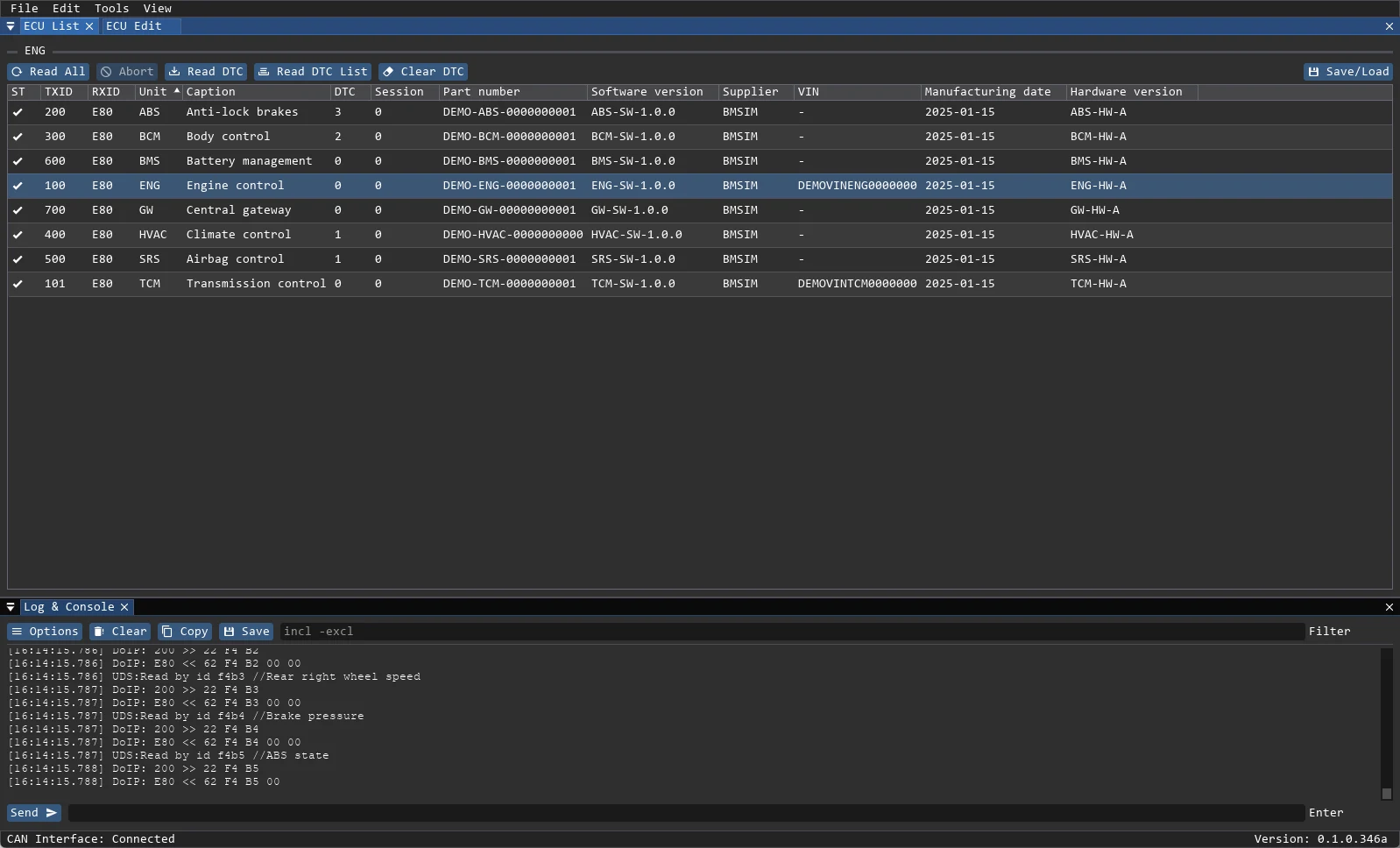
Each ECU is stored as a separate .bmecu file, so it can be copied into another project.
Project properties
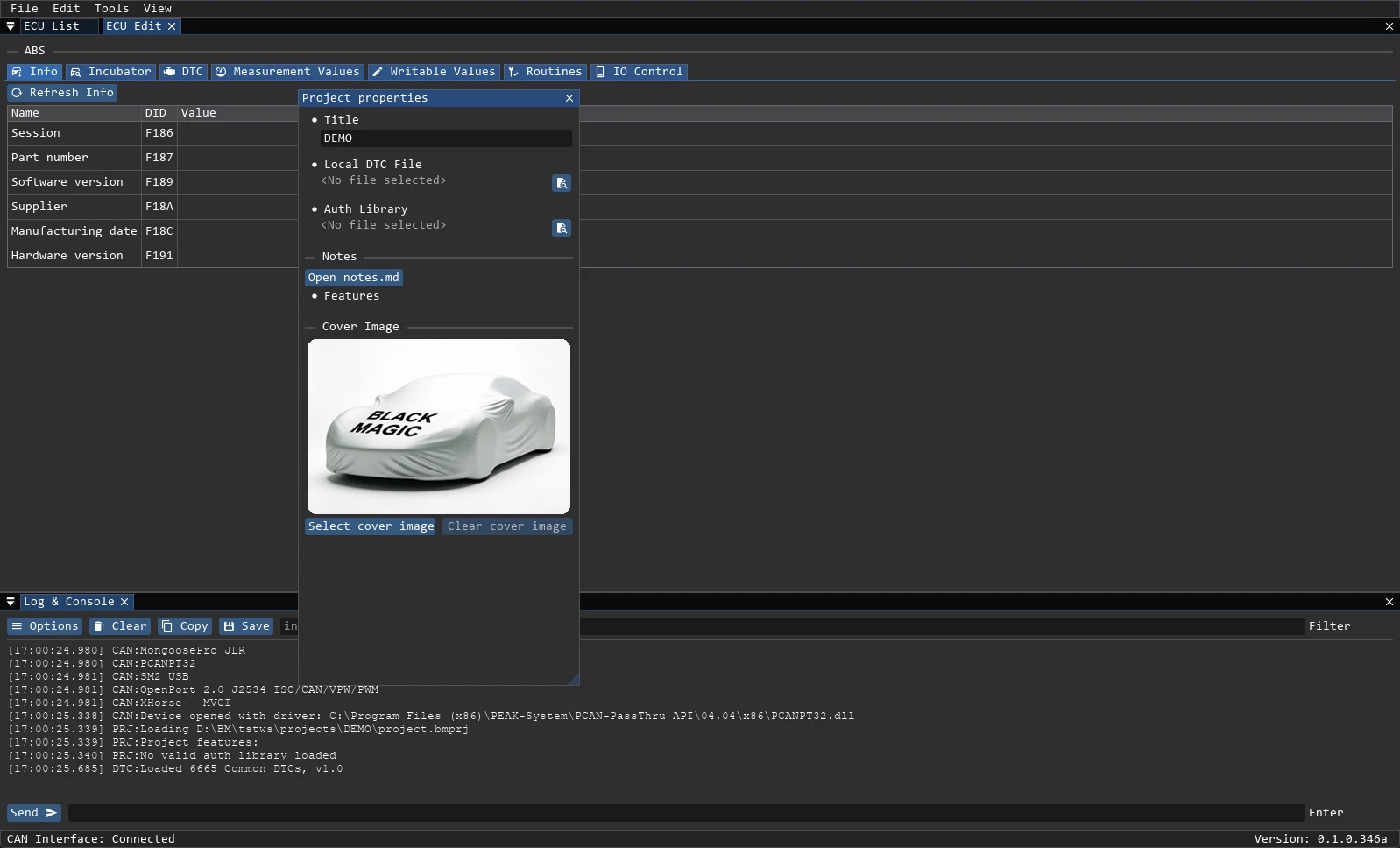
View → Project Properties holds:
- Title — project name;
- Local DTC File —
.jsonor.txtdescriptions; - Auth Library — project auth DLL;
- Features — project feature flags (for example vehicle modules);
- Cover Image — PNG/JPG/BMP cover;
- Notes — opens
notes.md.
A missing file is highlighted in red. Project Notes supports Save and Reload; notes.md is limited to 64 KiB and is stored next to the project, not inside .bmprj.
Undo and table behaviour
- Edit → Undo (
Ctrl+Z) and Redo (Ctrl+Y). The depth is a setting (default 20, range 0–100); history is not saved between launches and is blocked while an ECU task runs. - In ECU List, a single click selects, a double click opens the ECU and reads its parameters, and a right click opens the context menu.
- Right-click the Unit column header for Fill from. Columns can be sorted, reordered, hidden and resized.
- If no ECU is selected, ECU Edit shows
No ECU selected.
Before the first read
- Check that every ECU has the correct request and response IDs.
- Select the transport per ECU.
- Open the ECU once and refresh identification parameters; this proves the addressing before you build a large parameter table.